Context
Appmax’s marketing content team planned posts, emails, videos and events for three brands. The planning lived in spreadsheets, and each piece’s status lived in Jira. The request came from the team itself.
The interface is in Portuguese, as it was built for a team in Brazil.
Problem
Each brand had its own plan, and each channel had its own list. To know what was going out that week, someone had to put everything together by hand, and the status of each piece sat in Jira, outside the spreadsheet.
My role
Calendário 360 was one of the internal tools I was responsible for, from design to code. I did the discovery, the flows, the interface and the development on my own. I gathered the users’ needs together with the team’s project manager.
Process
Discovery
Before designing any screen, I started from what the team already used, to see where the information lived:
- The semester’s project spreadsheet, with the owner, priority and dates of each project for the three brands.
- The Jira board, which held the copy, assignee and progress of each piece.
Permissions before screens
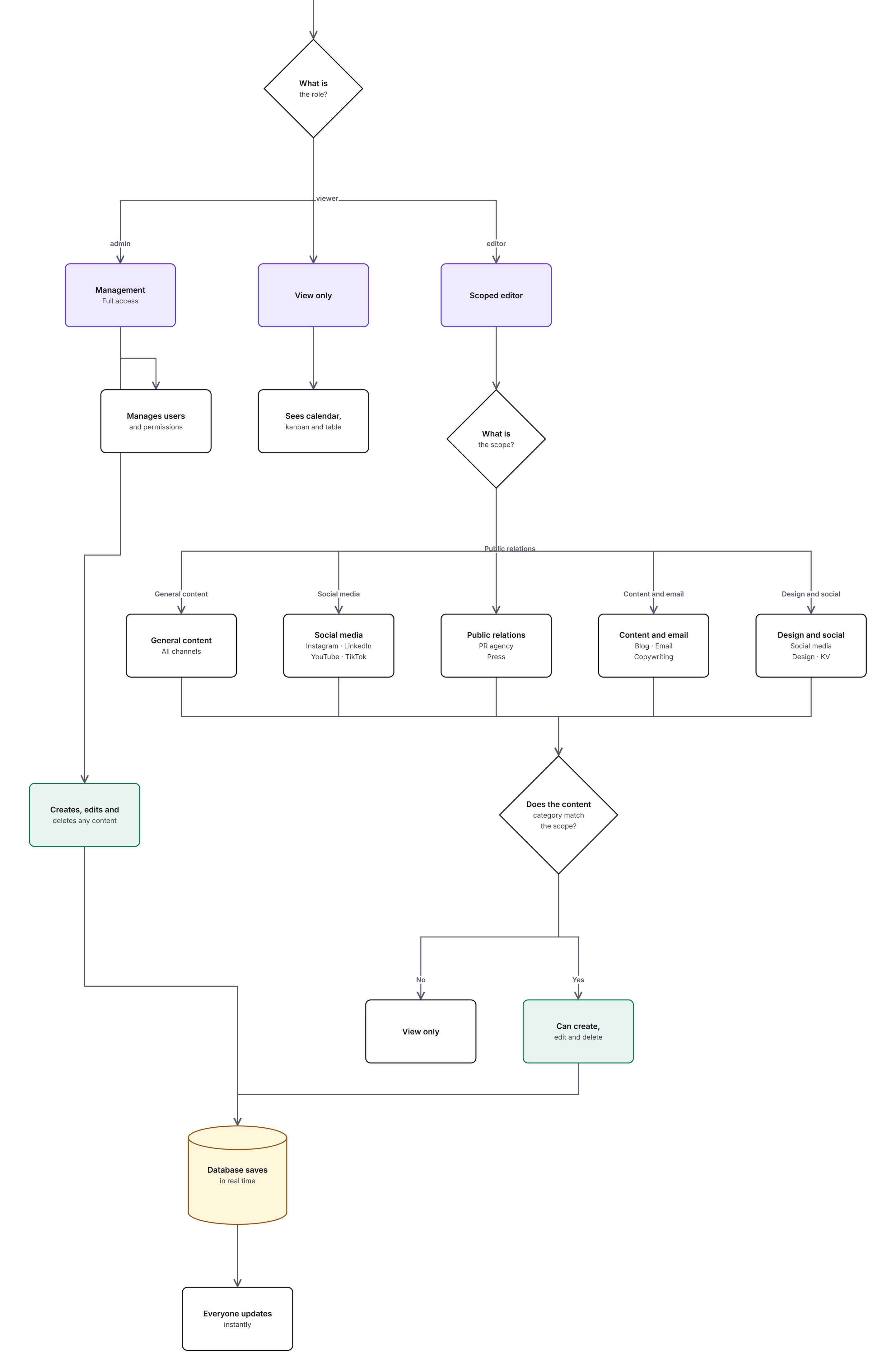
Before the interface, I mapped out in FigJam who can see, create and edit what. The flow below comes from that board, redrawn with the people replaced by their areas.
In the code, the three roles (admin, editor and viewer) are also enforced in the database rules.
Six releases
The first three releases were ready between August 5 and 10. Two later improvements came from the team’s requests: the project name on top of each piece (September 29) and creating pieces from Jira tasks (October 8).
The interactive demo
The demo runs the same code as the product, with fictional brands, projects and people and no database. Everything runs in the browser and resets when the page reloads. The interface is in Portuguese.
- Jira stays the source of status
What I saw
Each piece’s copy, assignee and status already lived in Jira, where the team works.
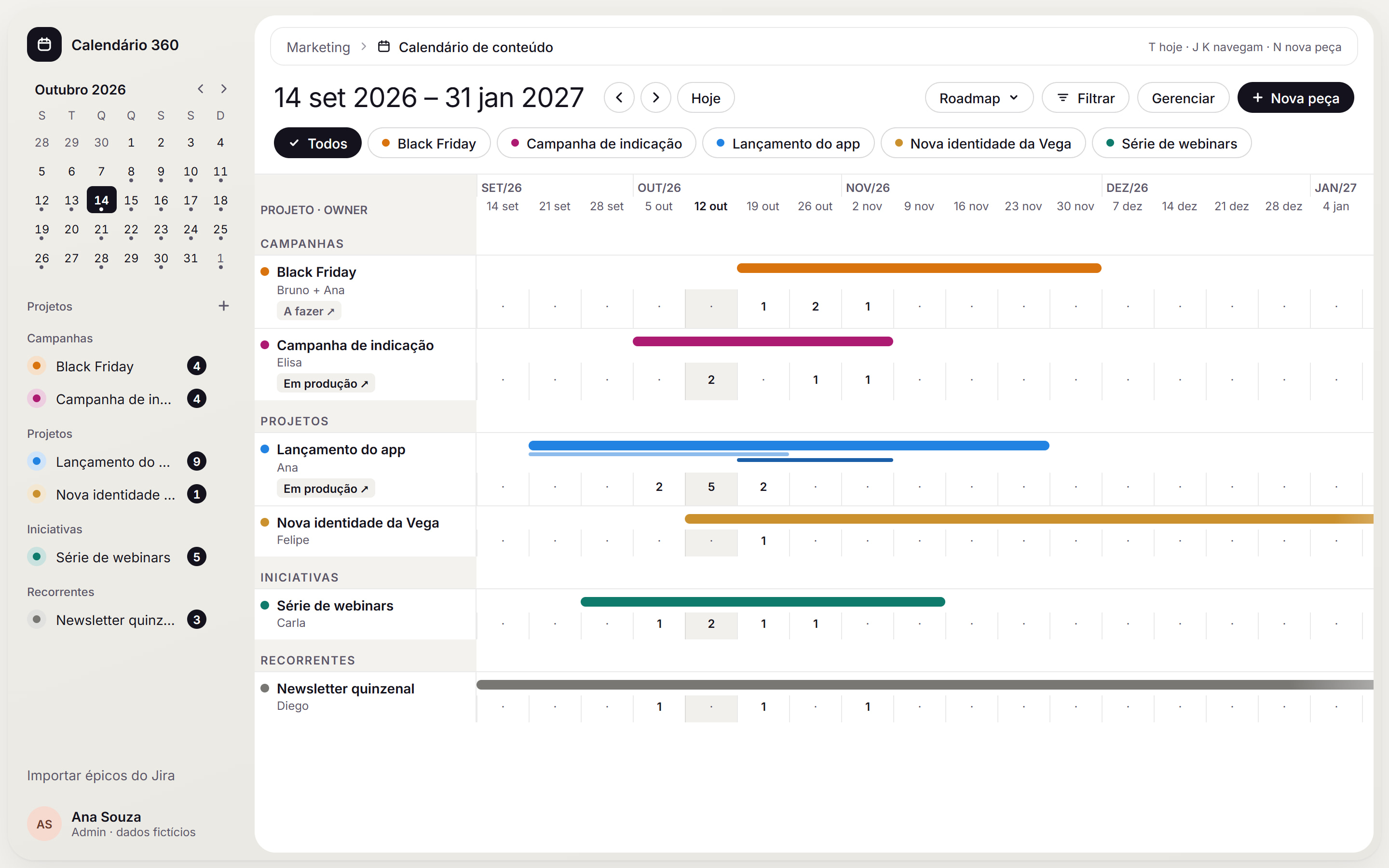
What I decidedThe status shown in the calendar comes from Jira, updated every 30 minutes, and only Jira can change it.
WhyThat way there is a single version of each piece of data, and the team doesn’t have to update the same status in two places.
- Open dates show up on the roadmap
What I saw
Not every project has a set end date, and the team needs to see what is planned week by week.
What I decidedOn the roadmap, a solid bar marks a project with a start and an end, a gradient tip marks an open date and each week shows the number of pieces.
WhyAt a glance, the team can tell what already has a deadline from what still needs a date.
- Three levels of access roles
What I saw
Social, press, content and design each look after different parts of the calendar, and many people only need to look things up.
What I decidedThree roles: admin, who manages everything; editor, who creates and edits; and viewer, who sees the calendar, roadmap and lists without editing. In the designed flow, editors work within a scope by area. In the code, roles are also enforced in the database rules.
WhyPeople who only look things up can see everything with no risk of changing anything, and permissions don’t depend on the interface alone.
Outcome
The marketing content team, about 12 people, uses Calendário 360 every day. Two improvements came from requests made after the team started using the tool: the project name on each piece and creating pieces from Jira.